Template Packages
A template package lets you move several mail templates between companies and environments in one go - for example, to roll out a full set of approved templates from a test environment to production, to hand a complete set of templates to a colleague or another partner, or to keep a versioned backup of your templates before making large changes.
Template packages reuse the same Layout Package mechanism that Document Creator uses for report layouts, so if you are already familiar with layout packages, mail template packages will feel exactly the same.
Export Template Package
- Open the Document Mail Templates page.
- Select one or more mail templates in the list. Use Ctrl or Shift while clicking to select multiple templates at once, or select all templates to export your entire set of templates.
- Invoke the Export Template Package action.
- Save the resulting package file to your computer.
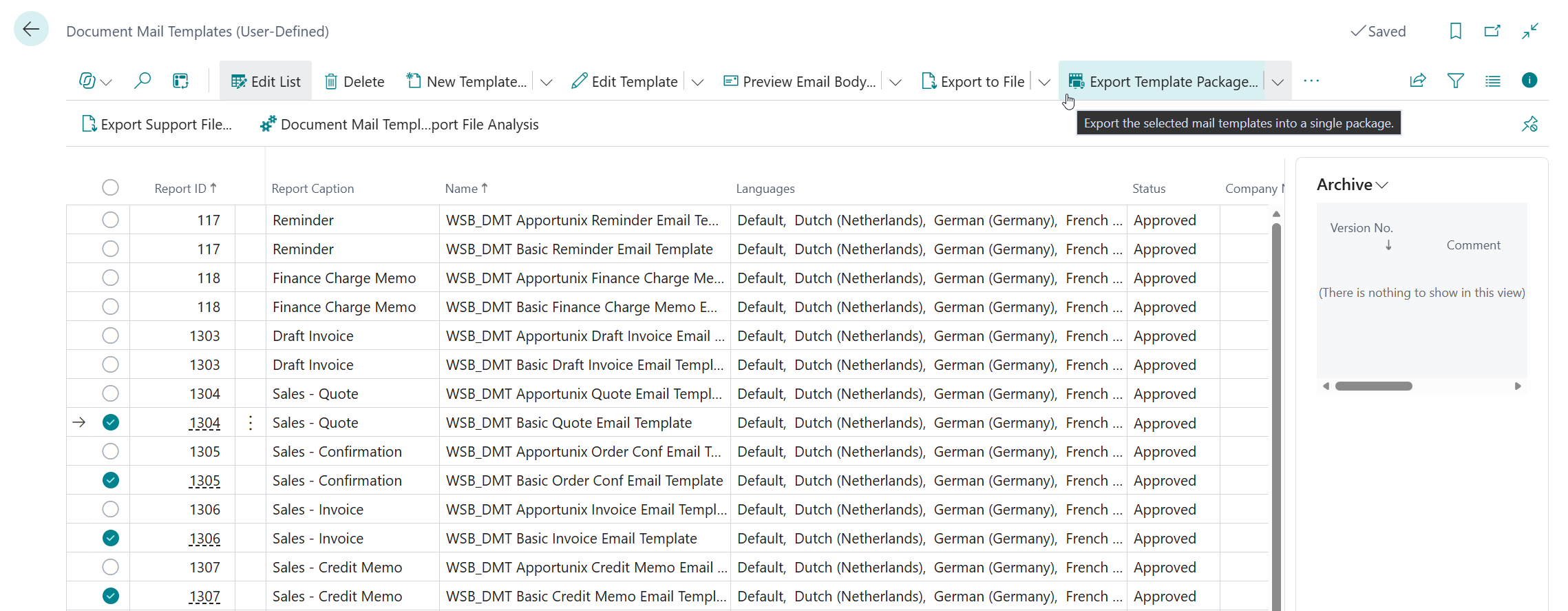
The package file contains a full copy of every selected mail template, including all of its language translations and its current status.
Import Template Package
- Open the Document Mail Templates page.
- Invoke the Import Template Package action.
- Select a template package file from your computer.
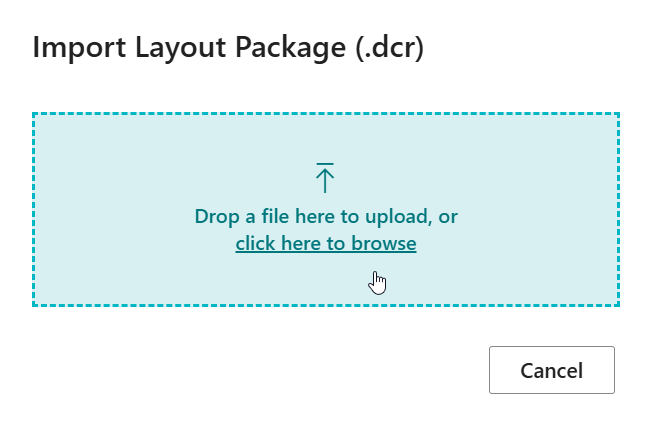
Every mail template in the package is imported as a new mail template record - existing mail templates are never modified directly by an import. If a mail template with the same report, name and app already exists, the existing version is first copied to the Archive (see Document Mail Templates) with the comment "Before Layout Package Import", and is then replaced by the version from the package.
Important
Because a template package can contain templates for reports from any Business Central extension, make sure you only import packages you trust, or that come from a source you recognize, such as a colleague or Apportunix support.
Dataset Extensions
If a report used by one of the templates in the package has a Dataset Extension (extra fields made available as placeholders), that dataset extension is included in the package by default, and is overwritten on import.
Whether dataset extensions are included in exported packages can be changed with the Layout Package Contents field on the Document Creator Setup page, which applies to both report layout packages and mail template packages.
When to Use a Template Package
-
Promote templates between environments
Move a finished and approved set of mail templates from a sandbox or test environment to production.
-
Share templates
Send a complete set of mail templates to a colleague, another company in your organization, or to Apportunix support for troubleshooting.
-
Keep an external copy
The Archive already keeps a version history of every change inside Business Central, but that history lives in the same database as the templates themselves. Export your user-defined mail templates as a package file, and store it outside Business Central - for example in source control or on a shared drive - to protect against a sandbox refresh (which overwrites the sandbox with a copy of production) or an environment restore to an earlier point in time.
Tip
See the Layout Packages documentation of Document Creator for more background on how layout packages work under the hood.