Document Mail Templates
The Document Mail Templates (User-Defined) page is the central place to view, create and manage all your mail templates. A mail template is a report layout that is used as the HTML e-mail body when a document, such as a sales invoice or a reminder, is sent by e-mail from Business Central.
To open the page, use the Tell Me search feature (Alt+Q, or click on the ‑icon in the top right corner) to search for and open the Document Mail Templates page.
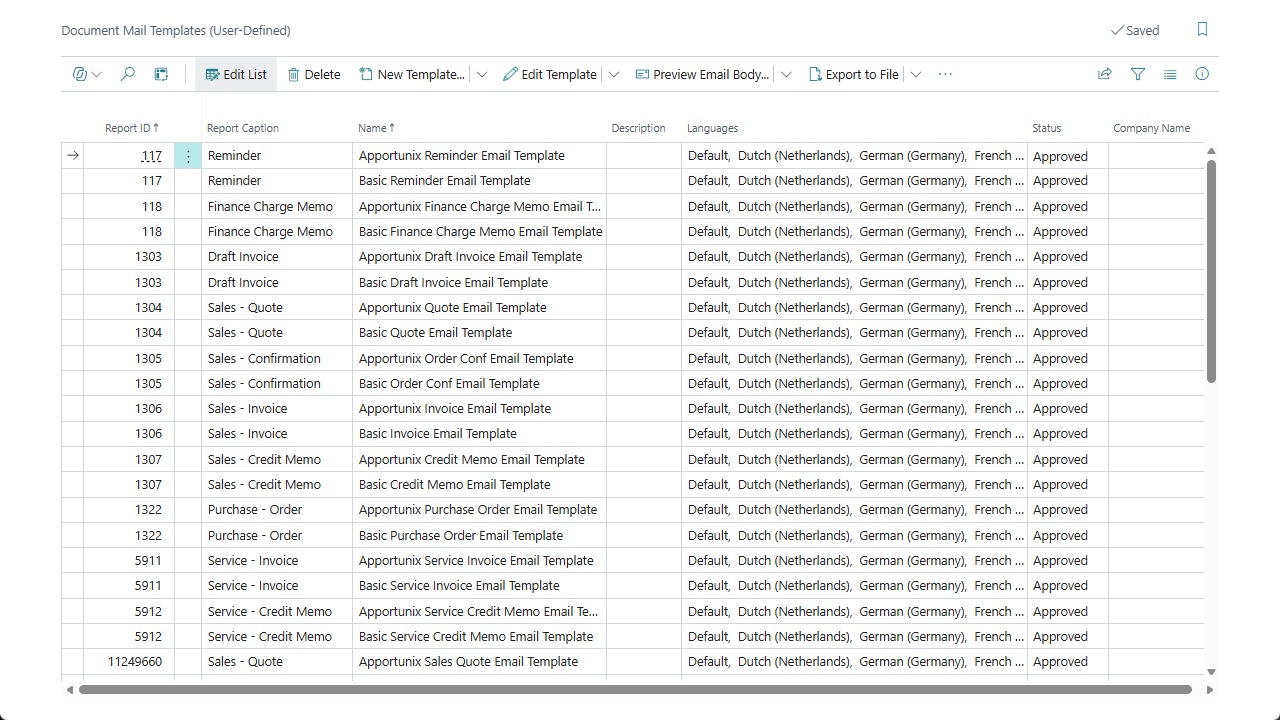
Overview
The page shows one line per mail template, with the following information:
| Field | Description |
|---|---|
| Report ID | The ID of the report that the mail template belongs to. |
| Report Caption | The caption of the report that the mail template belongs to. |
| Name | The (technical) name of the mail template. |
| Description | A description of the mail template that you can freely edit. |
| Languages | The languages that the mail template has a separate, translated e-mail body for. See Mail Template Translations. |
| Status | The approval status of the mail template. See Template Status. |
| Company Name | The company the mail template is specific to, if any. Left empty, the mail template can be used in every company. |
The Archive factbox shows the version history of the selected mail template, so you can always go back to a previous version.
Tip
The same actions described below are also available directly from the standard Report Layouts page, in the Document Mail Templates action group, once the Document Mail Templates extension is installed.
Available Actions
From the Document Mail Templates page, you can:
- Create a new mail template, either blank or as a copy of a built-in template or an existing mail template.
- Edit or view the e-mail subject and body of a mail template.
- Preview Email Body - Render a preview of the e-mail body with real report data and view it in the Business Central e-mail editor, so you can verify the layout and placeholders before sending documents to customers.
- Export to HTML - Download the rendered e-mail body as a UTF-8
.htmlfile. - Export to File / Import from File - Export or import a single mail template as a
.dmtfile. See Export & Import. - Change the Status of one or more selected mail templates (Approved, Draft, Pending Approval, Retired).
- Export Template Package / Import Template Package - Bundle several mail templates together, or import a package that was exported elsewhere. See Template Packages.
- Export Support File / Document Mail Templates Support File Analysis - Export a mail template together with sample data for troubleshooting on another tenant. See Support File Analysis.
- Email Template Selection - Open the report selections, where you choose which mail template is used as the e-mail body for each type of document. See Email Template Selection.
- Where-Used - Find out where the selected mail template is currently used. See Where-Used.
- View or edit the report's Dataset Extensions, Columns and Data Items - these Document Creator features help you find out which data is available to use in placeholders. See Placeholders and Syntax.