Placeholders and Syntax
Mail templates use a lightweight, Handlebars-like placeholder syntax to insert data from the report into the e-mail subject and body. While designing a mail template, you rarely need to type this syntax by hand - use the Insert Field, Insert Repeat Block, Insert If-Else Block, Insert Translatable Label and Insert System Variable actions described in Editing a Mail Template, or let Copilot make the changes for you - but this page describes the full syntax for reference, and for when you want to fine-tune a template using the HTML editor.
Fields
| Placeholder | Description |
|---|---|
{{DataItem.Column}} |
Inserts the (HTML-encoded) value of a report column. You can also use {{Column}} without the data item name, and the data item will be resolved automatically. |
{{{DataItem.Column}}} |
Inserts the value of a report column without HTML-encoding it, for example to insert a piece of HTML that is stored in the data. |
When you select a column with Insert Field, use Include Data Item Name to choose whether the generated placeholder includes the data item name. This choice/preference is remembered for your user.
Note
Placeholders are resolved against the current record. Only at the root of the report dataset is the whole dataset searched, so a placeholder such as {{Line.Description}} also works outside of a repeat block.
When the current record does not have a column, a {{Column}} placeholder without data item name uses the value of the nearest enclosing record that does have it.
For example, inside {{#each CopyLoop}}, {{lblDescription}} shows the caption column of the enclosing Header record.
When the current record does have a column with that name, its own value is used.
Binary Columns as Text
Normal field placeholders also support BLOB, Media and MediaSet columns that contain Base64-encoded UTF-8 text. The renderer uses the report schema or the dataset column's data type to identify binary columns before decoding them; an ordinary text column is not decoded just because its value resembles Base64.
{{Header.TextBlob}}decodes the text and HTML-encodes it, preserving line breaks in the rendered body.{{{Header.TextBlob}}}decodes the text and inserts it without HTML-encoding. Use this only for trusted HTML; it is not sanitized.
Empty binary text renders nothing. Invalid Base64 causes a rendering error identifying the column. This feature reads text stored as UTF-8 bytes; it does not perform OCR or extract text from image, PDF or other binary file formats.
Images
Use {{#image ...}} to insert an image from a BLOB, Media or MediaSet report column, or from the company-logo system variable:
{{#image Header.Picture}}
{{#image $CompanyMetadata.CompanyLogo}}
The placeholder generates a complete <img> element with an embedded PNG data URL. It has no closing tag.
Do not place it inside an existing <img src="..."> attribute.
Supported input images are converted to PNG; missing or empty values render nothing, and invalid or unsupported image data causes a rendering error.
Image placeholders use the same report-column scope rules as fields. Inside a repeat block, {{#image Picture}} uses the current record's column, or the nearest enclosing record's column if it is absent.
MediaSet placeholders display only the image supplied by the report dataset, not every image in the set.
The generated image uses max-width:100%;height:auto;. Place it in a styled container to control its layout, for example:
<div style="width:200px;">
    {{#image $CompanyMetadata.CompanyLogo}}
</div>
Note
Images are embedded in both e-mail bodies and HTML exports, not attached through CID references. Display of embedded images depends on the receiving e-mail client, so test the result with the clients your recipients use.
Repeating Content
Use an {{#each}} block to repeat a part of the e-mail body for every record of a report data item, for example to list all lines of a document:
{{#each Line}}
    {{Description}} - {{Quantity}} x {{Unit_Price}}
{{/each}}
Inside an {{#each DataItem}} block, you can refer to the columns of that data item directly by name, for example {{Description}}.
To refer to a column of the data item that encloses the block instead - for example, to repeat the document number on every line - prefix the placeholder with ../, for example {{../No_}}.
Skipping Intermediate Data Items
Many document reports contain data items that only exist for printing, such as a CopyLoop or PageLoop between the document header and its lines.
You do not need to mention these in a mail template: a data item is looked up at the nearest nesting level below the current record, so the following two blocks render the same lines when Line is nested in CopyLoop below Header:
{{#each Header}}
    {{#each Line}}
        {{Description}}
    {{/each}}
{{/each}}

{{#each Header}}
    {{#each CopyLoop}}
        {{#each Line}}
            {{Description}}
        {{/each}}
    {{/each}}
{{/each}}
The lookup never leaves the current record, so the lines of one document header never end up in the e-mail of another.
You can also write the path to a nested data item explicitly, separated by dots, for example {{#each CopyLoop.Line}}.
Warning
When a skipped data item has more than one record - for example, a CopyLoop for a report that prints several copies - the records below it are repeated once for every record of that data item.
In that case, include the data item in the block, and use {{#if @first}} to only render the first copy.
Inside an {{#each}} block you can also use the following special placeholders:
| Placeholder | Description |
|---|---|
{{@number}} |
The number of the current record, starting at 1. |
{{@index}} |
The number of the current record, starting at 0. |
{{@count}} |
The total number of records. |
{{@first}} / {{@last}} |
Use together with {{#if}} to include content only for the first, respectively the last, record of the block. |
To include content only for the first or last record of a repeat block, wrap it in an {{#if @first}} or {{#if @last}} block, for example to add a line between order lines, but not after the last one:
{{#each Line}}
    <p>{{Description}} - {{Quantity}} x {{Unit_Price}}</p>
    {{#if @last}}{{else}}<hr>{{/if}}
{{/each}}
Conditional Content
Use an {{#if}} block to include one part of the e-mail or another, depending on whether a column, system variable, iteration variable or data item has a value:
{{#if Amount}}
    The total amount is {{Amount}}.
{{else}}
    No amount is available.
{{/if}}
The {{else}} part is optional.
For values, an empty value, false or a numeric zero is treated as false; a non-zero number or other non-empty text is treated as true. A data item is true when it contains at least one record.
Comparisons
A condition can compare a report column, system variable or iteration variable on the left with a literal value on the right:
{{#if Amount > 0}}
    The outstanding amount is {{Amount}}.
{{/if}}

{{#if Status = "Released"}}
    This document has been released.
{{else}}
    This document is not released.
{{/if}}
| Operator | Meaning | Supported values |
|---|---|---|
= |
Equal to | Numbers and text |
!= or <> |
Not equal to | Numbers and text |
> |
Greater than | Numbers |
>= |
Greater than or equal to | Numbers |
< |
Less than | Numbers |
<= |
Less than or equal to | Numbers |
Text literals can be enclosed in single or double quotes; the outer quotes are removed before the comparison. Ordering comparisons only match when both values can be interpreted as numbers. In HTML, the editor may encode < and > as < and >; the renderer recognizes those encoded forms as comparison operators too.
Negation
Prefix a condition with ! to negate it, i.e., to include the content when the condition is not true:
{{#if !Your_Reference}}
    Please mention the document number in your payment.
{{/if}}

{{#if !@last}}<hr>{{/if}}
Negation works for columns, system variables, iteration variables and data items.
For comparisons, it is clearer to use the opposite operator instead, for example {{#if Amount <= 0}} rather than {{#if !Amount > 0}}.
Note
A block must be closed by a tag of the same kind - i.e., {{#each}} by {{/each}}, and {{#if}} by {{/if}}.
Warning
If a tag is not closed correctly, it is left as-is in the rendered output, so that the mistake remains visible and you can fix it.
Repeating and Conditional HTML Elements
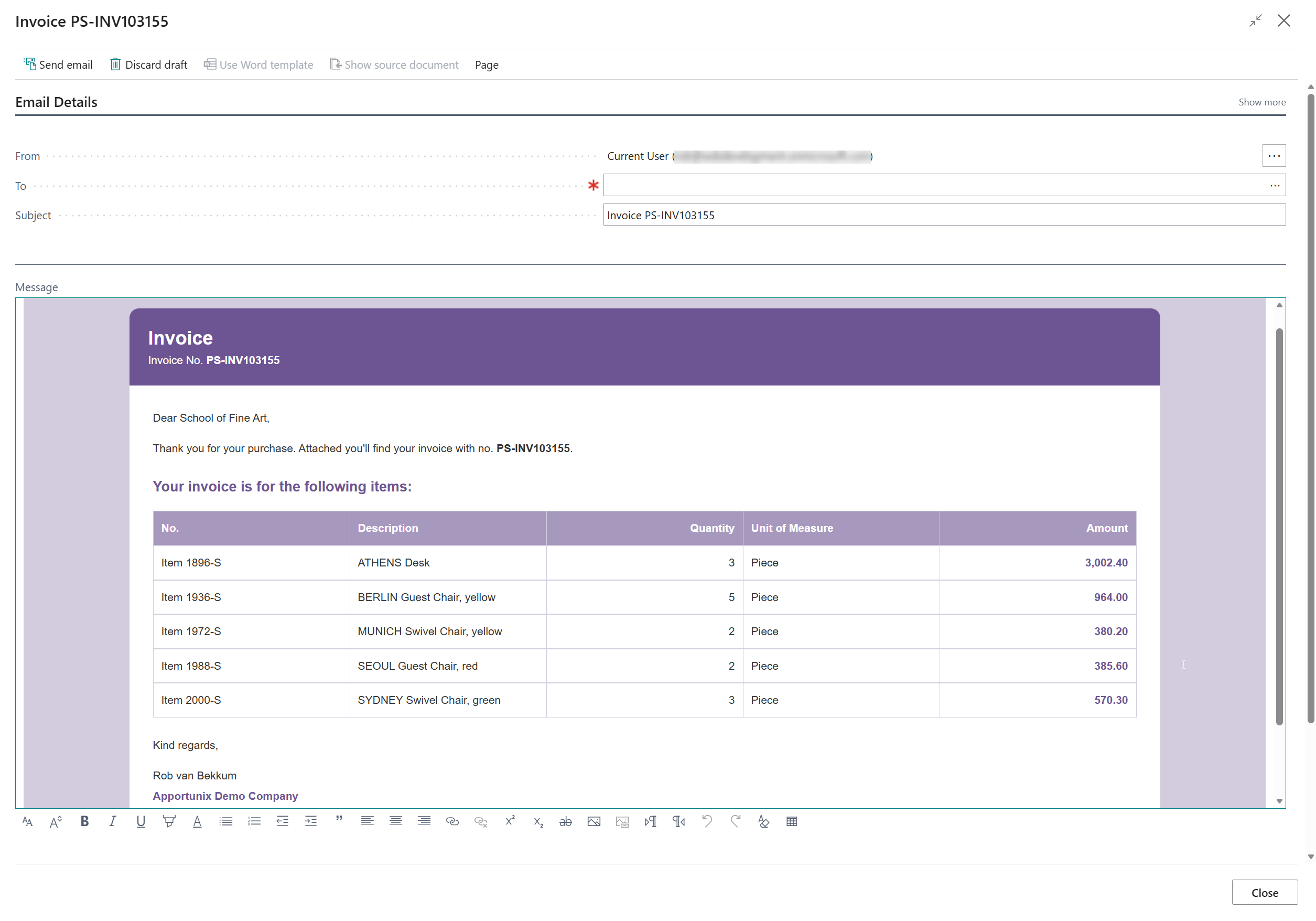
The {{#each}} and {{#if}} blocks work well around paragraphs and other free text, but not between the rows of a table: HTML editors move any text that is placed between table rows out of the table.
To repeat or conditionally include table rows - or any other HTML element - add one of the following attributes to the element itself:
| Attribute | Description |
|---|---|
data-each="DataItem" |
Repeats the element for every record of the data item. Placeholders inside the element are resolved against the current record. |
data-if="{{Column}}" |
Only includes the element when the condition is true. It supports the same conditions as {{#if}}, for example data-if="!{{Column}}" or data-if="{{Amount}} > 0". |
For example, to show a table row for every document line, but only for the lines with a quantity:
<table>
    <tr>
        <th>Description</th>
        <th>Quantity</th>
    </tr>
    <tr data-each="Line" data-if="{{Quantity}}">
        <td>{{Description}}</td>
        <td>{{Quantity}}</td>
    </tr>
</table>
When data-each and data-if are used on the same element, the condition is evaluated for every record.
The attributes themselves are removed from the rendered e-mail body.
Repeating a Group of Rows
A data-each attribute on a table row only applies to that row, so a second row with its own data-each would not be part of the same record.
To repeat a group of rows per record - for example, a row per document line followed by a row per lot number of that line - put data-each on a <tbody> element instead.
A table can contain as many <tbody> elements as you need:
<table>
    <thead>
        <tr>
            <th>Description</th>
            <th>Quantity</th>
        </tr>
    </thead>
    <tbody data-each="Line">
        <tr>
            <td>{{Description}}</td>
            <td>{{Quantity}}</td>
        </tr>
        <tr data-each="TrackingSpec">
            <td colspan="2">Lot No.: {{LotNo}}</td>
        </tr>
    </tbody>
</table>
Tip
Use the HTML Editor to add data-each and data-if attributes, because the visual editors do not offer a way to edit element attributes.
Element-level attributes are also what Copilot uses when it adds tables to a mail template.
Rich-Text Formatting Inside Placeholders
Visual editors can add HTML formatting or non-standard whitespace while you edit a placeholder.
During rendering, Document Mail Templates removes span tags from inside placeholder expressions, normalizes common HTML and Unicode space characters, removes invisible zero-width formatting characters and collapses repeated spaces.
This makes placeholders and conditional expressions resilient to incidental formatting introduced by a rich content editor.
This normalization applies only inside the {{ ... }} expression; it does not remove formatting from the surrounding e-mail body.
Comments
Use {{! comment }} to add a comment to a mail template.
Comments are not included in the rendered e-mail body.
Translatable Labels
Use {{#label Tag}} to insert a label/caption translation, identified by its tag.
The label is automatically translated to the language of the document when the e-mail is composed - see the Document Creator Report Translations documentation for how to define translations.
System Variables
Use {{$ReportMetadata.Field}} or {{$ReportRequest.Field}} to insert a system variable of the report. The Insert System Variable action lets you pick one of the following without typing it out:
| Placeholder | Description |
|---|---|
{{$ReportRequest.CompanyDisplayName}} |
The display name of the company that the document was created in. |
{{$ReportRequest.UserName}} |
The user name of the user that is sending the document. |
{{#image $CompanyMetadata.CompanyLogo}} |
The company logo, inserted as an image. Selecting this system variable creates an image placeholder automatically. |
{{$ReportRequest.DateAndTime}} |
The current date and time. |
{{$ReportRequest.Year}} |
The current year. |
{{$ReportRequest.MonthNumber}} |
The current month number. |
{{$ReportRequest.DayNumber}} |
The current day number. |
{{$ReportRequest.Hour}} |
The current hour. |
{{$ReportRequest.Minute}} |
The current minute. |