Setup
Document Mail Templates has an integrated setup wizard to assist you with the initial configuration of the extension. It is recommended to use the setup wizard page to set up the extension.
-
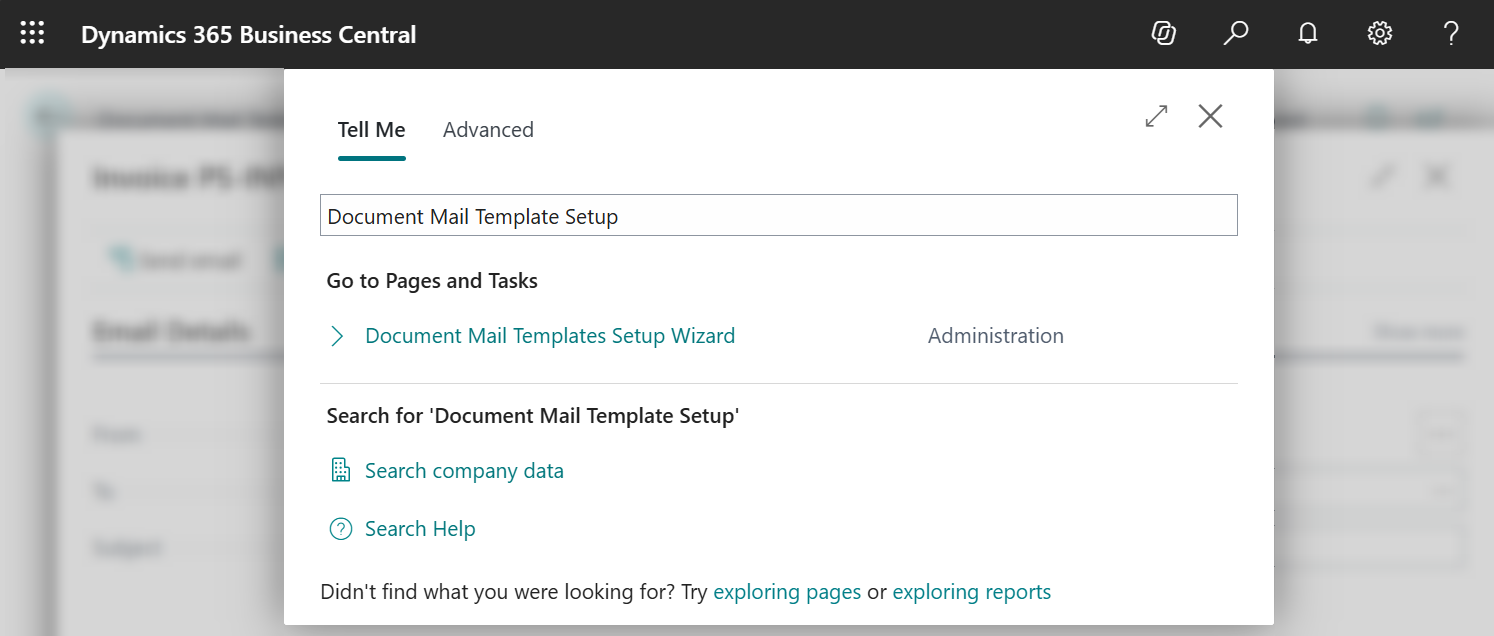
Search for and open the Document Mail Templates Setup Wizard page using the Tell Me search feature (Alt+Q, or click on the ‑icon in the top right corner).
-
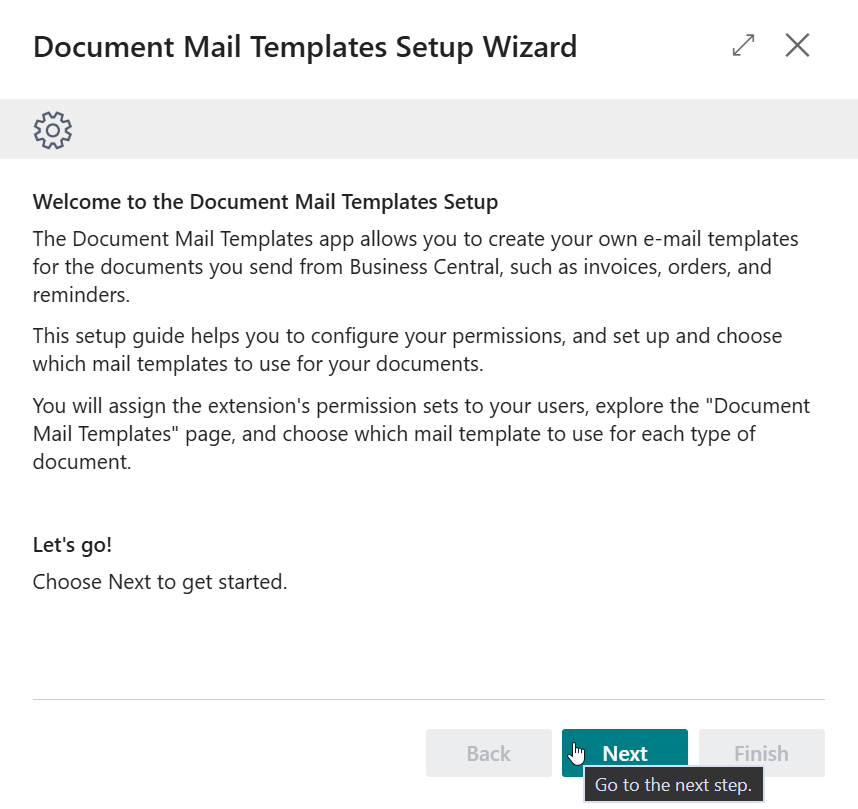
Read the introduction and click on Next to move on to the next step.
-
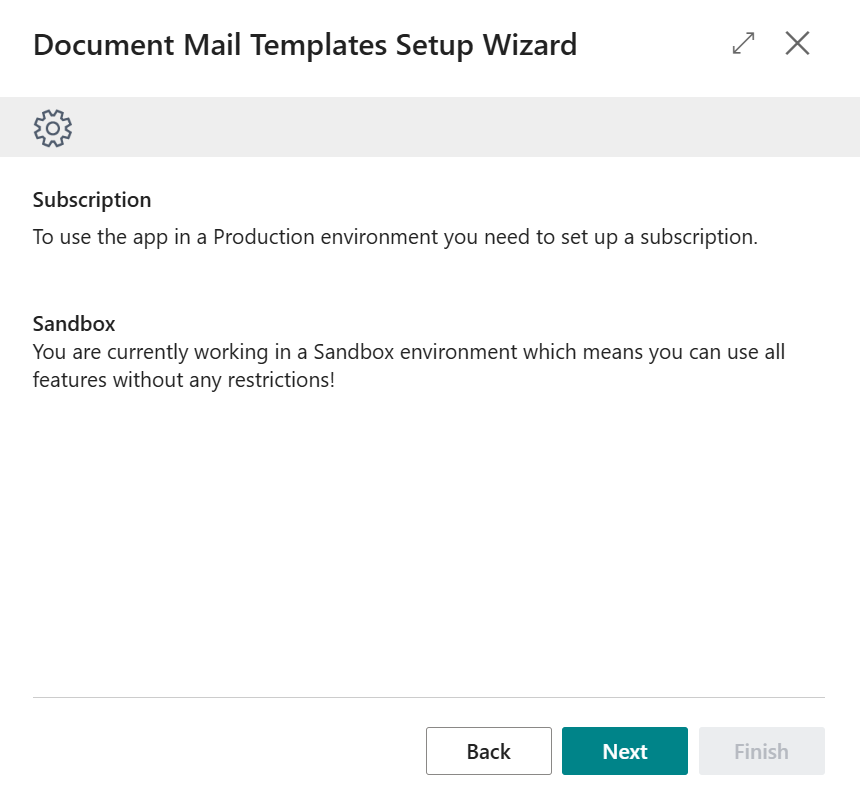
Read the information about the extension being free-to-use in Sandbox environments and requiring a subscription in Production environments (see License Activation) and choose Next to move on to the next step.
-
Assign the extension's permission sets to your users and/or security groups, as described in Permission Configuration, using the Users and Security Groups actions if needed. Choose Next to continue.
-
Read the information about the Document Mail Templates page, where you create, edit and manage your mail templates, and optionally open it directly from the wizard. Choose Next to continue.
-
Read the information about Email Template Selection, where you choose which mail template to use for each type of document, and optionally open it directly from the wizard. Choose Next to continue.
-
In the final step of the setup wizard choose Finish.
Apportunix Document Mail Templates is now configured and is ready to be used.