Editing a Mail Template
The mail template editor is where you design the e-mail subject and body of a mail template. Open it with the Edit Template action on the Document Mail Templates (or Report Layouts) page - or with View Template to open a mail template in read-only mode.
Info
Only user-defined mail templates can be edited. If you selected a built-in (or otherwise non-editable) mail template, use Copy Template first to create your own editable copy.
Layout
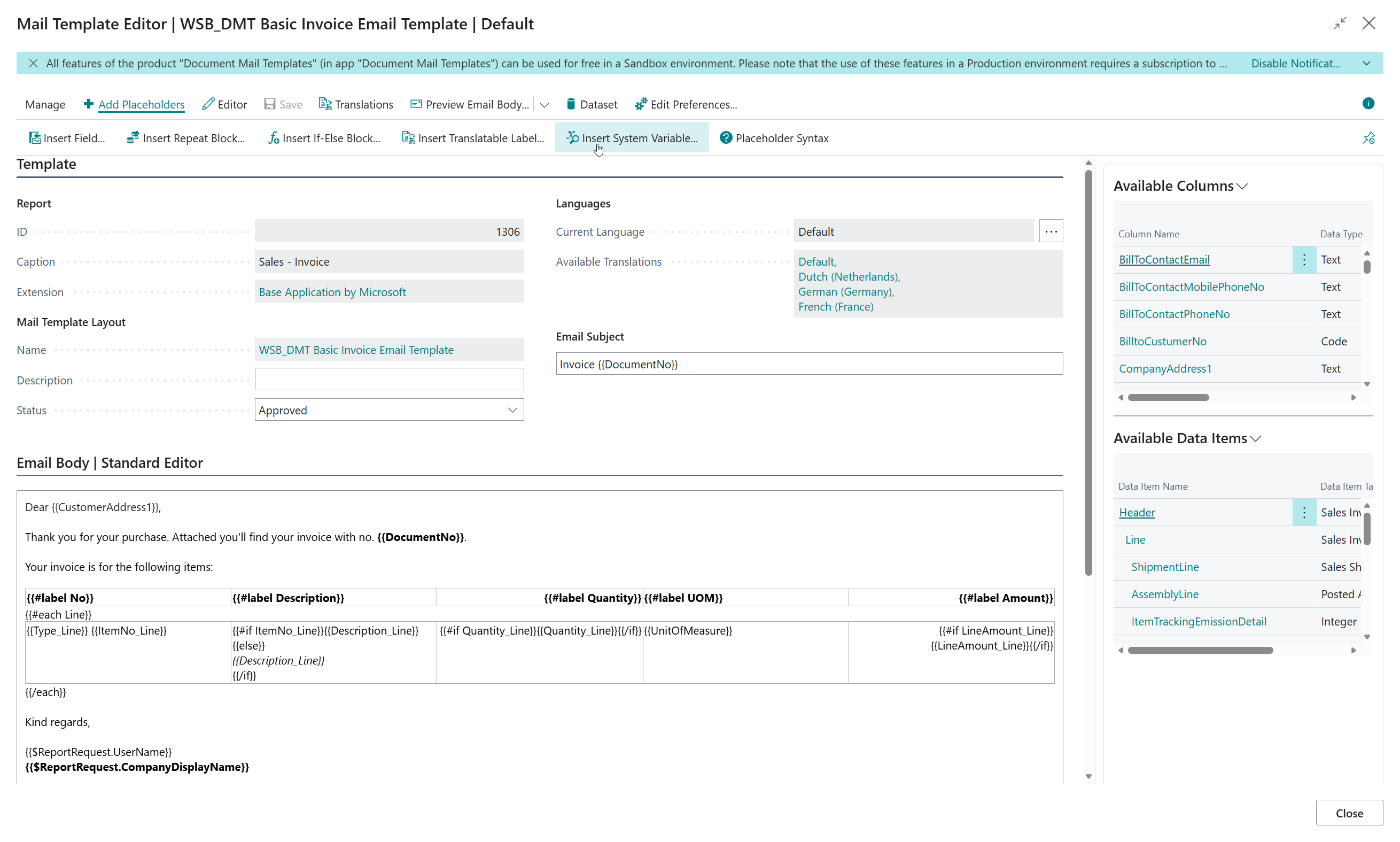
At the top of the editor you find read-only information about the Report the mail template belongs to, and the Mail Template Layout itself (name, description and status).
Below that are the Languages fields which allow you to switch between the different versions of the mail template per language. See Mail Template Translations for more detailed information.
- Email Subject - The subject of the e-mail. You can use the same placeholders as in the e-mail body. Leave this field empty to keep the subject that Business Central would otherwise compose itself.
- Email Body - The contents of the e-mail body, edited using the standard, advanced or HTML editor (see below).
When you edit a mail template, the Available Columns and Available Data Items factboxes show the report data you can use in placeholders. Custom columns from enabled Document Creator dataset extensions are included.
Use the actions in these factboxes to copy a field placeholder, if-else block or repeat block to the clipboard. The factboxes are hidden when the template is opened read-only or from a detached support file.
Choosing an Editor
The Advanced Editor is used by default. It is a visual editor for formatting text, inserting images and tables, and working with placeholders without writing HTML. Its toolbar can insert fields, repeat blocks, if-else blocks, translatable labels and system variables directly at the current cursor position.
You can switch between three editor types from the Editor action group:
- Standard Editor - The standard Microsoft Dynamics 365 Business Central rich content editor.
- Advanced Editor - The default visual editor, including direct placeholder insertion from its toolbar.
- HTML Editor - A source-code editor for fine-tuning the HTML or pasting a template designed elsewhere.
Your changes are saved automatically when you switch editor.
The selected editor is remembered for your user.
Use Edit Preferences to adjust Editor Height (pixels) (between 400 and 2000) and your other personal preferences.
Inserting Placeholders
The Add Placeholders action group contains the following actions:
-
Insert Field - Select a report column and create a placeholder for its value, for example the customer name or a document total. For a BLOB, Media or MediaSet column a menu dialog is shown. Choose Insert as picture to create an
{{#image ...}}placeholder or Insert as text to create a normal field placeholder. -
Insert Repeat Block - Select a report data item (such as the document lines) and create a block that repeats its enclosed content for every record.
-
Insert If-Else Block - Select the report column that determines whether the first or second part of the block is shown.
-
Insert Translatable Label - Select a Document Creator translation and create a placeholder for it. The label is translated to the language of the document when the e-mail is composed.
-
Insert System Variable - Select a system variable, such as the company name, the current user, or the current date and time. Selecting CompanyMetadata.CompanyLogo creates
{{#image $CompanyMetadata.CompanyLogo}}to insert the company logo as a picture.
These actions copy the generated text to the clipboard so that you can paste it into the e-mail subject or body. In the Advanced Editor, the matching toolbar buttons insert the generated text directly into the body at the cursor position.
When selecting a column for Insert Field or Insert If-Else Block, use Include Data Item Name to choose between a short placeholder such as {{Amount}} and a fully qualified placeholder such as {{Header.Amount}}.
This preference is remembered for your user.
For binary columns, Insert as picture is selected by default when the column name contains Picture, Image or Logo, unless it also contains Text.
Otherwise Insert as text is selected by default.
The check is case-insensitive, and you can always choose the other option.
Cancelling the choice inserts nothing.
Text insertion decodes the column as UTF-8 text; it does not extract text from a picture or other binary document. See Binary Columns as Text.
The Available Columns and Available Data Items factboxes offer another quick way to copy placeholders for the selected report node.
Use Placeholder Syntax to quickly open the full Placeholders and Syntax reference.
Editing with Copilot
Instead of editing the e-mail body yourself, you can describe the change you want in your own words and let Copilot make it for you. Copilot knows the placeholder syntax and the data items and columns of the report, including custom columns and data items from Document Creator dataset extensions, so it can add fields, repeat blocks, tables of document lines and conditional content that work with the report.
Info
Editing with Copilot is a preview feature and is only available in Business Central online. An administrator must enable the Document Mail Templates - Mail Template Assist capability on the Copilot & agent capabilities page first. When the capability is not enabled, the Copilot actions are not available in the editor.
-
In the mail template editor, open the version of the mail template that you want to change, and choose Edit with Copilot (also available from the Copilot button).
-
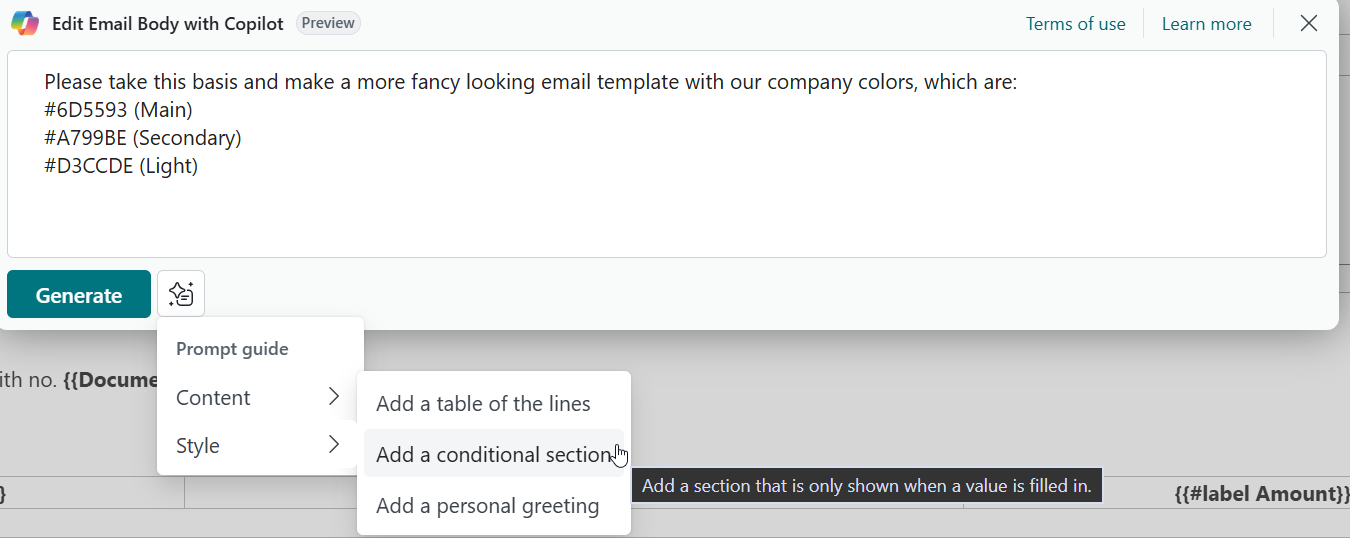
Describe the change in the prompt field, for example "Add a table with the description, quantity and amount of each line" or "Make the tone more formal". You can also choose one of the example prompts as a starting point.
-
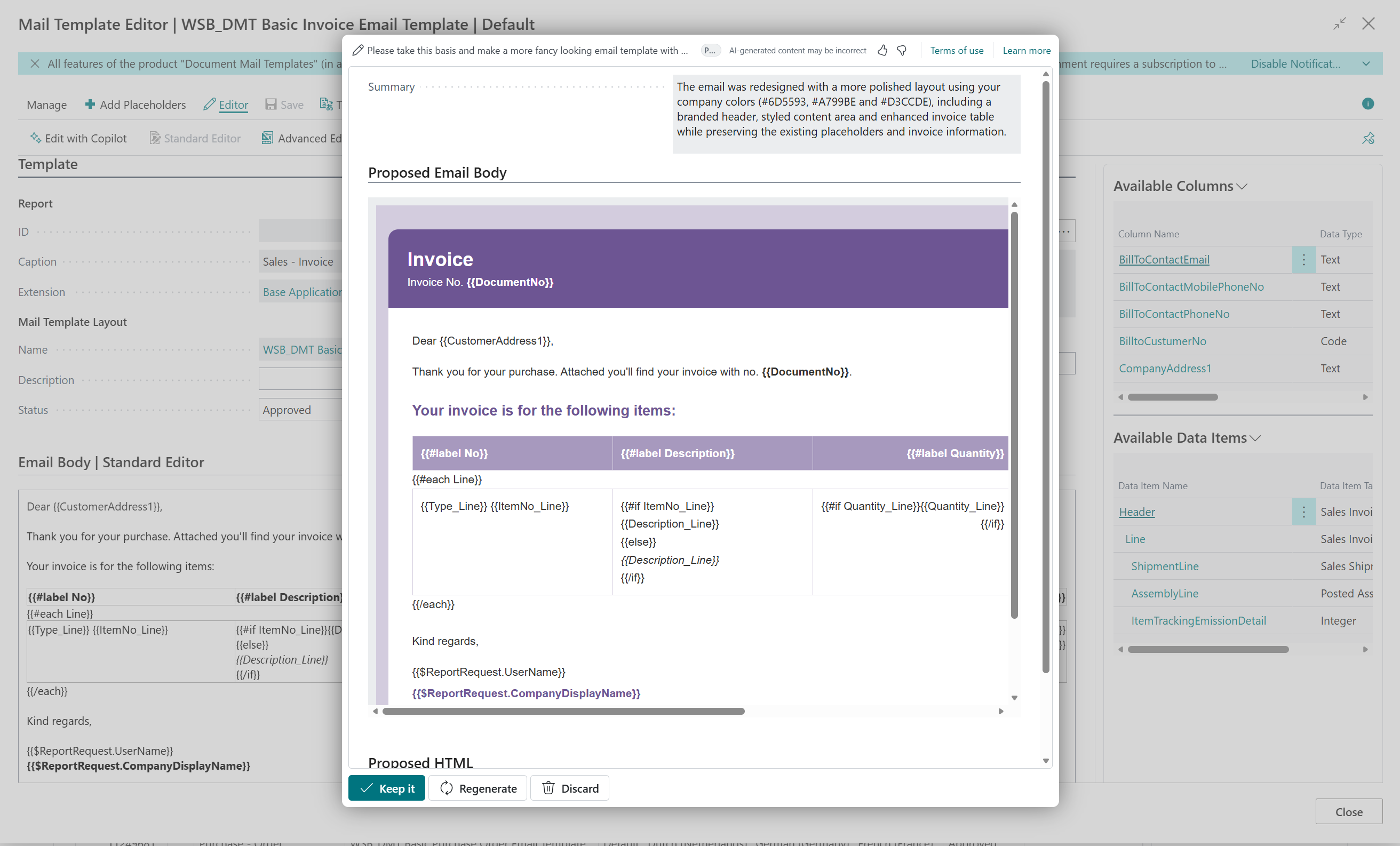
Choose Generate. Copilot proposes an updated e-mail body and summarizes what it changed. The proposal is shown both as a preview and as HTML, which you can still adjust before you keep it.
-
Choose Keep it to replace the e-mail body in the editor with the proposal, Regenerate to let Copilot try again, or Discard to close the dialog without changes.
Copilot only changes the e-mail body of the version that you are editing; the e-mail subject and the other language versions are not changed. The changes are not saved until you save the mail template, so always check the result, for example with Preview Email Body. When you save, Copilot can also update the other language versions of the mail template - see Aligning Translations with Copilot.
Warning
Copilot uses AI, so mistakes are possible. Review the proposed e-mail body, including its placeholders, before you keep and save it.
Saving and Previewing
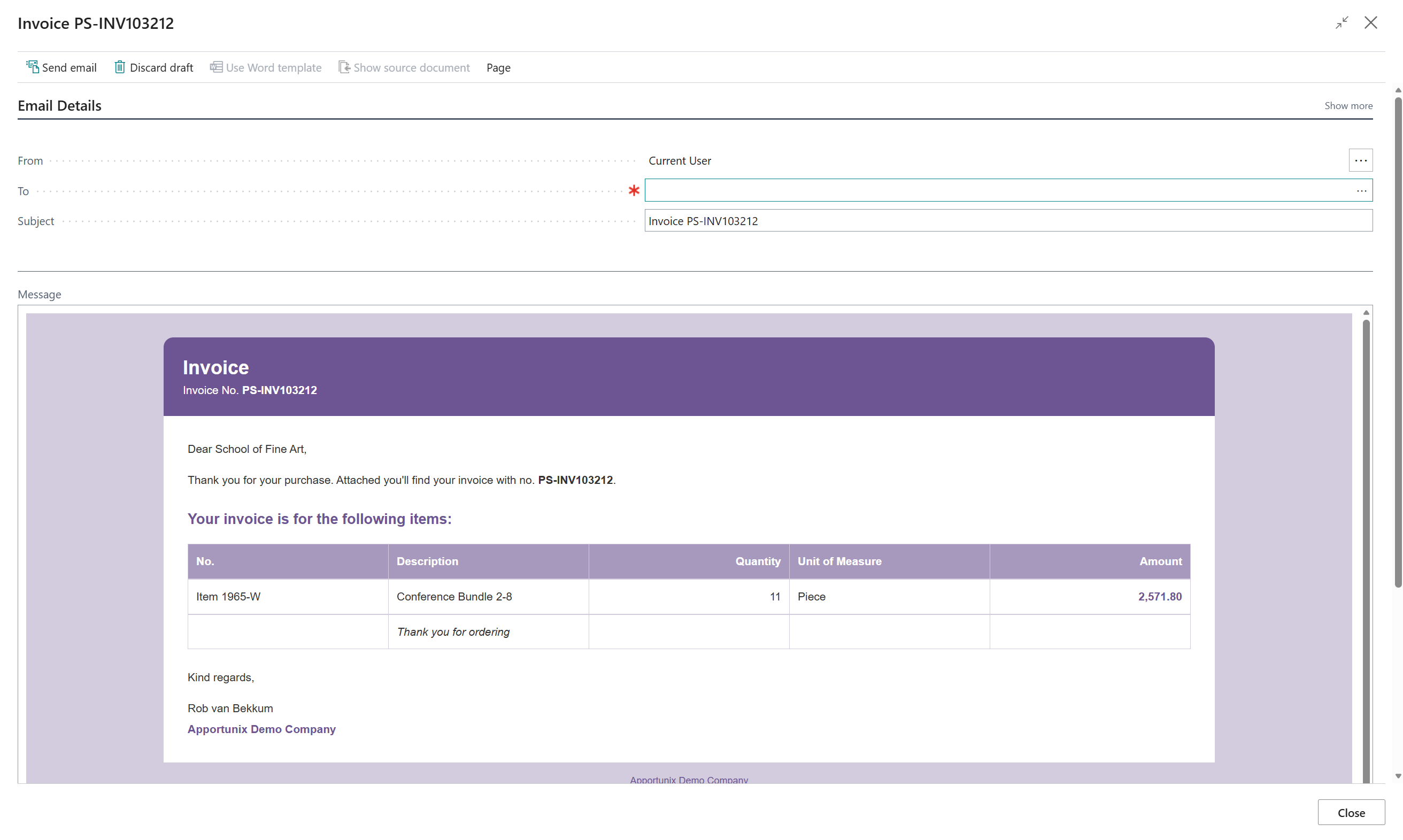
Choose Save to save your changes. Use Preview Email Body to save the mail template and immediately render a preview of the e-mail body with real report data, opened in the Business Central e-mail editor, so that you can verify the result before you actually start using the template.

When Copilot is enabled and you save changes to the e-mail subject or body of a mail template that has other language versions, Copilot can update those versions as well, depending on your Align Translations on Save setting. See Aligning Translations with Copilot for more information.
Exporting the Rendered Body
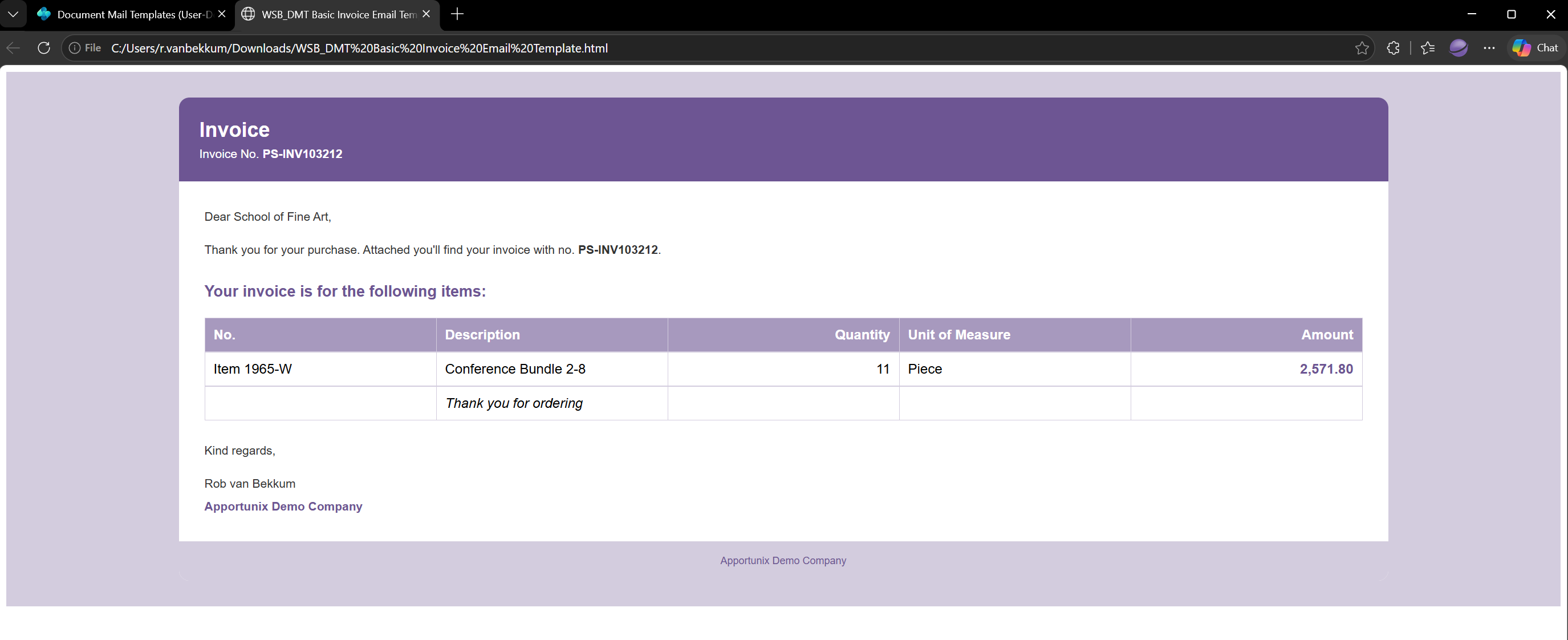
Open the menu beside Preview Email Body and choose Export to HTML to download the rendered body instead of opening it in the e-mail editor. Preview Email Body is the primary action; Export to HTML is the secondary action in the same split button.
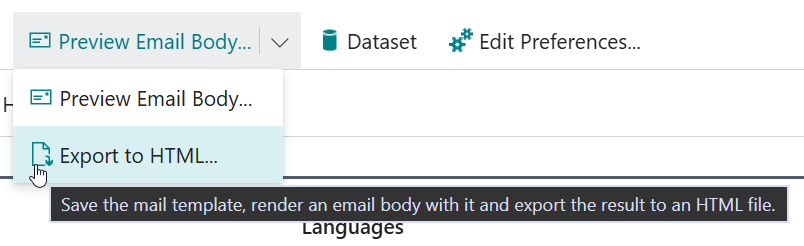
Like previewing, exporting offers to save pending changes when the template is editable, and uses the report request page to generate real report data.
Related Report Data Actions
The Dataset action group gives you quick access to the report's data, which is useful while designing placeholders:
- Dataset Extensions - View or add Document Creator dataset extensions for the report, to make additional fields available for use in placeholders.
- View Columns / View Data Items - Browse the columns and data items of the report in a tree view.
- Export Original Dataset / Export Customized Dataset - Export the report's dataset as XML, for example to inspect the exact data and structure that placeholders are resolved against.