Email Template Selection
Once your mail templates are ready and Approved, you need to tell Business Central which mail template to actually use as the e-mail body for each type of document. This is configured through the same Report Selection page that Document Creator uses to select report and layout combinations, extended by Document Mail Templates with an Email Body Layout column.
To open it, invoke the Email Template Selection action on the Document Mail Templates page (or search for Report Selection using the Tell Me search feature (Alt+Q, or click on the ‑icon in the top right corner)).

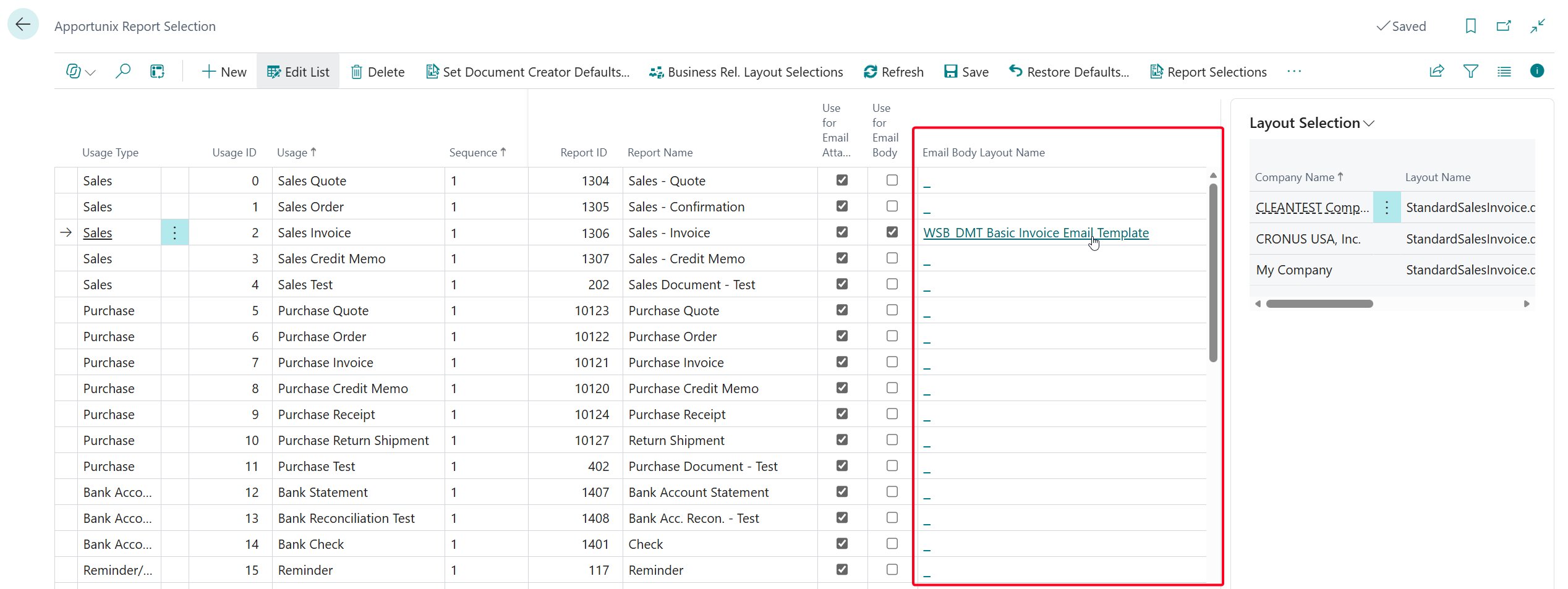
For each report usage (for example, Sales Invoice), and optionally per customer or vendor, select the mail template that should be used as the Email Body Layout. Only mail templates with the Approved status are available for selection here.
Tip
General information about setting up report and layout selections - such as how usages, sequences and customer/vendor-specific selections work - can be found in the Report Selection documentation.
Once configured, sending a document by e-mail from Business Central automatically uses the selected mail template to compose the e-mail subject and body - no further action is required from your users.
Choosing a Template When Sending
Enable Prompt for Email Template on the relevant report selection to let users choose the e-mail body template when sending a document with an e-mail dialog. The setting is Off by default.
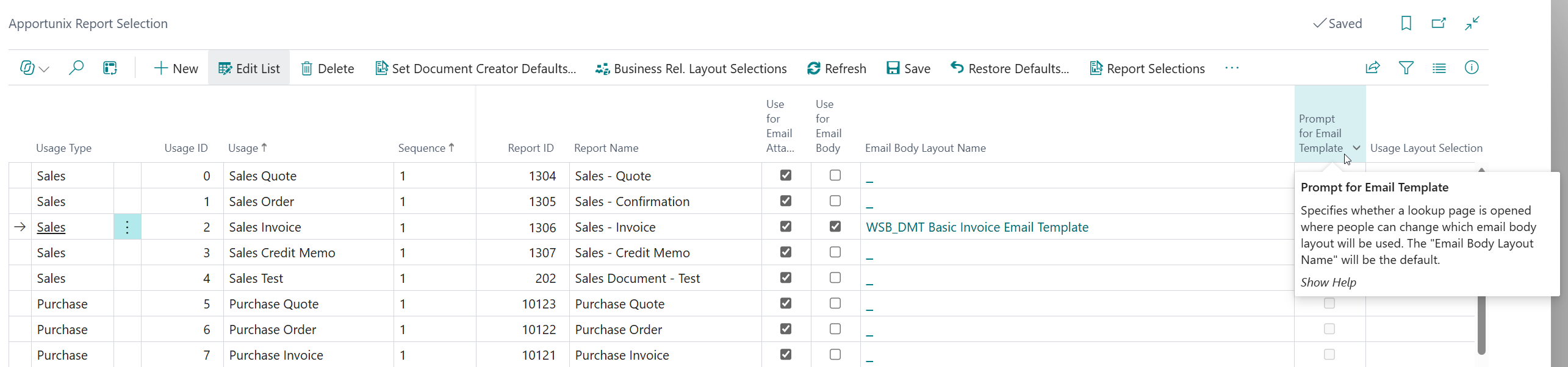
The column appears immediately after Email Body Layout on Apportunix Report Selection for general selections and on Business Relation Layout Selections for customer/vendor-specific selections. It is stored separately on each Report Selections or Custom Report Selection record.
When sending, Business Central first resolves any applicable customer/vendor-specific selection; otherwise it uses the general selection. The prompt uses the setting on that effective selection. A customer/vendor-specific selection with Prompt for Email Template off therefore overrides a general selection with it on.
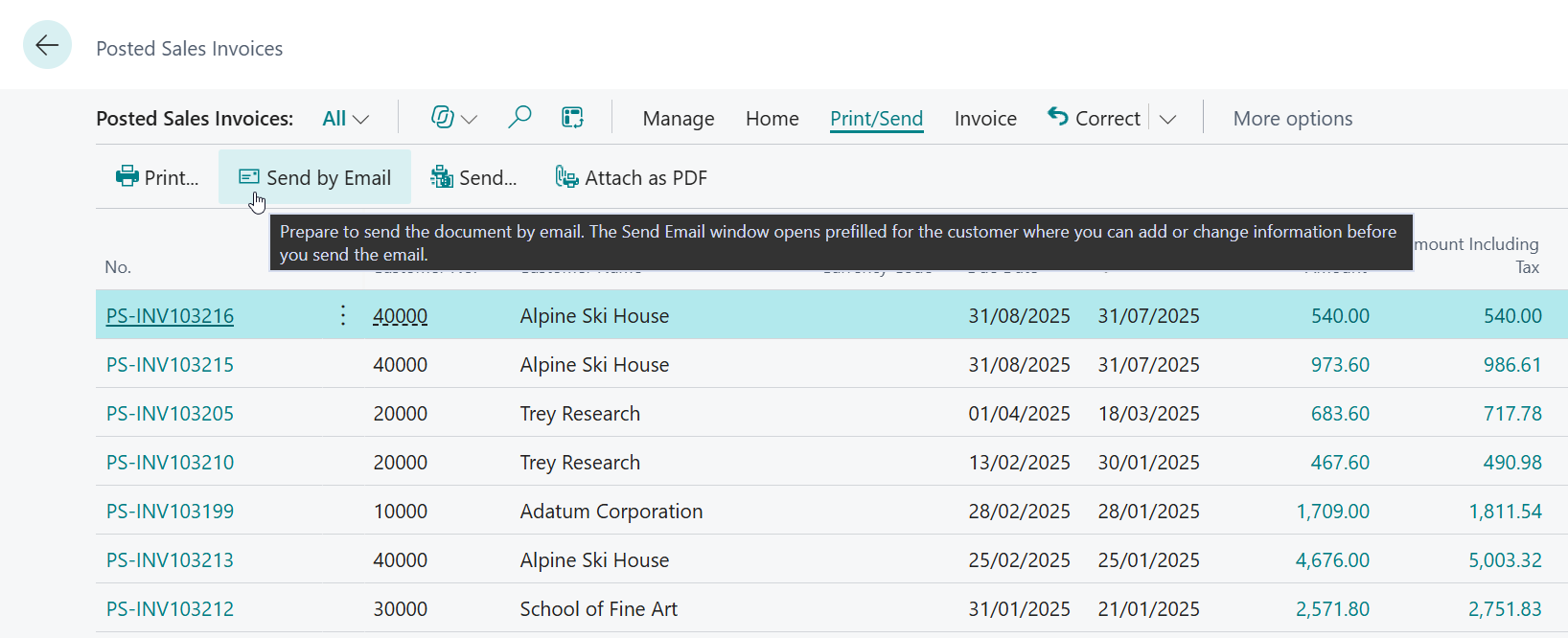
When the effective setting is enabled, customer or vendor e-mails with a report-based body open the Report Layouts page with the caption Email Templates, provided the sending flow requests an e-mail dialog (ShowDialog) and the session allows user interaction (GuiAllowed).
The available choices are approved Word and Custom layouts for the same e-mail body report - not just Document Mail Templates layouts.
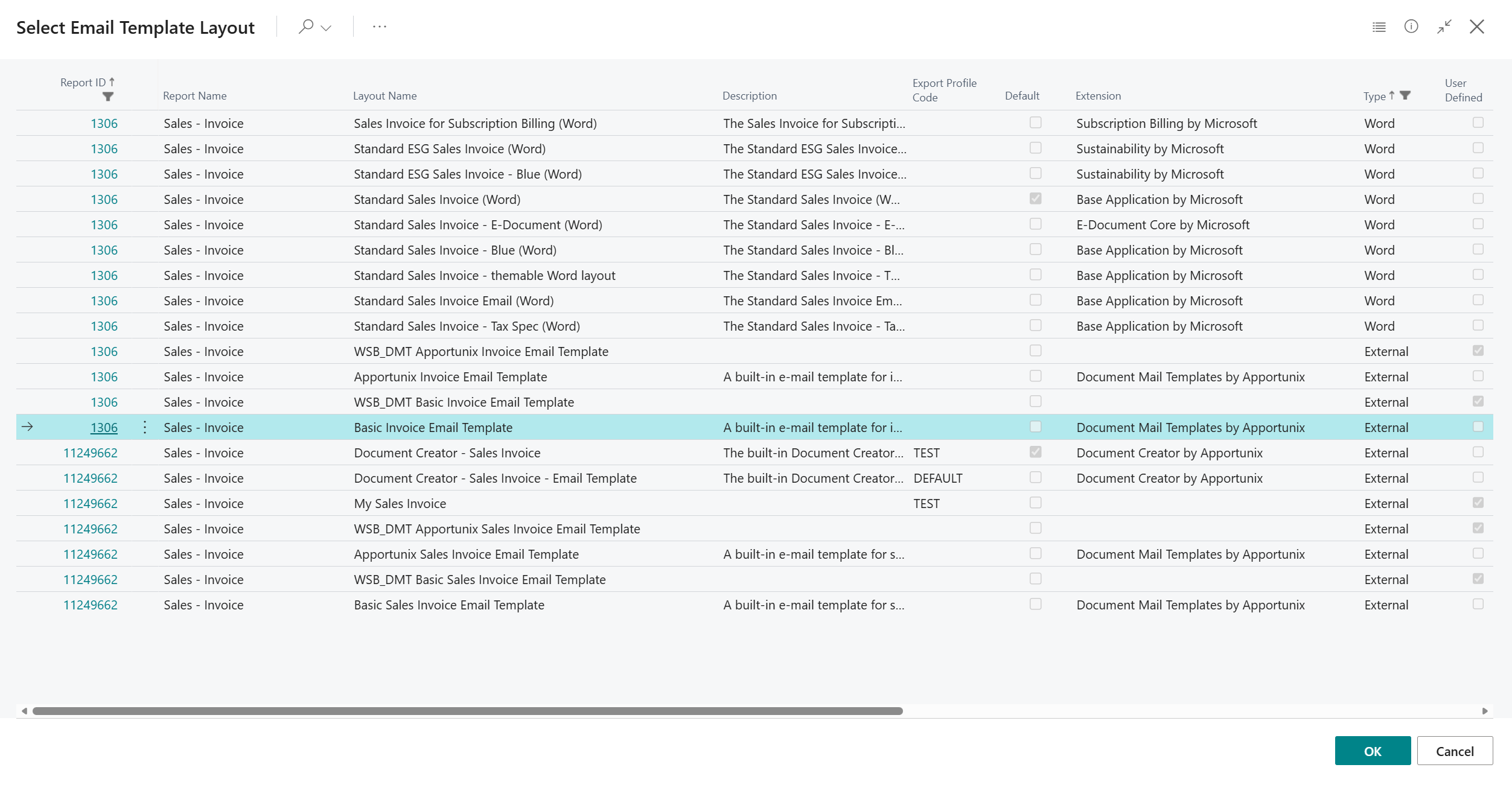
The configured layout name and app are preselected when that layout is eligible, including customer/vendor-specific overrides. Choose a layout to use it for this e-mail only. This temporary choice does not change report selection setup or attachment layouts.
Cancelling the template lookup aborts sending the e-mail; it does not continue with the original layout.
Note
The prompt is not shown when ShowDialog is false, when user interaction is unavailable (for example, in a background session), or for customer e-mails using the Office 365 HTML body flow. Without a prompt, the configured layout is used normally; there is no deferred foreground prompt. If no eligible layouts are available, no lookup is shown.