Creating a Mail Template
There are two ways to start a new mail template: create a new one from the Document Mail Templates (or Report Layouts) page, or make a copy of an existing mail template.
Creating a New Mail Template
-
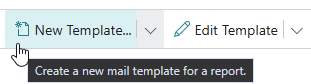
On the Document Mail Templates page, invoke the New Template action.
-
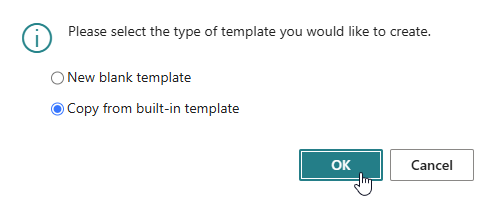
Choose whether you want to start with a New blank template or a Copy from built-in template.
- A new blank template starts with a simple, empty e-mail body ("Hello, ... Kind regards,") that you can build upon from scratch.
- Copy from built-in template opens a list of the built-in e-mail templates that ship with the extension, so you can select one to use as your starting point. Copying a built-in template is the quickest way to get started, since you only have to make the changes that you actually want.
-
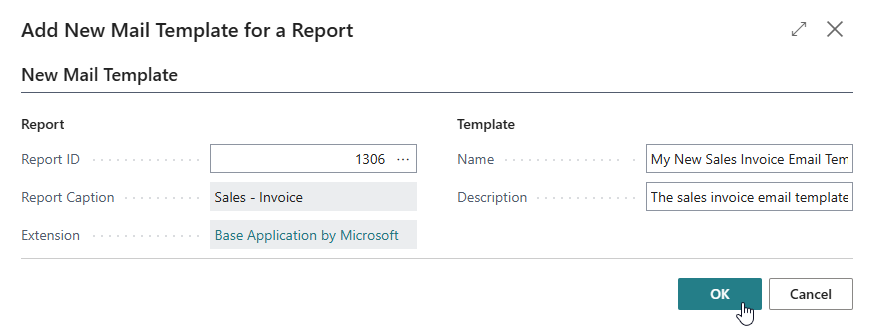
In the Add New Mail Template for a Report dialog, specify:
- Report ID - The report that the mail template is for. When you start from the Document Mail Templates or Report Layouts page for a specific report, this is already filled in for you.
- Name - A unique name for the mail template. Use the Suggest Unique Name action (Alt+S) to let Business Central suggest one for you.
- Description - An optional description for the mail template.
-
Choose OK. The new mail template is created and immediately opened in the template editor, ready for you to design the e-mail subject and body.
Built-In Templates
The Document Mail Templates extension ships with built-in mail templates for many of the most commonly e-mailed documents, including:
- Sales Quote, Sales Order Confirmation, Sales Invoice, Sales Draft Invoice, Sales Credit Memo, Sales Blanket Order and Sales Shipment
- Purchase Order, Purchase Invoice, Purchase Credit Memo and Purchase Blanket Order
- Reminder and Issued Finance Charge Memo
- Service Invoice and Service Credit Memo
These built-in templates cannot be edited directly - use Copy Template (or Copy from built-in template as described above) to create your own, editable copy first.
Copying an Existing Mail Template
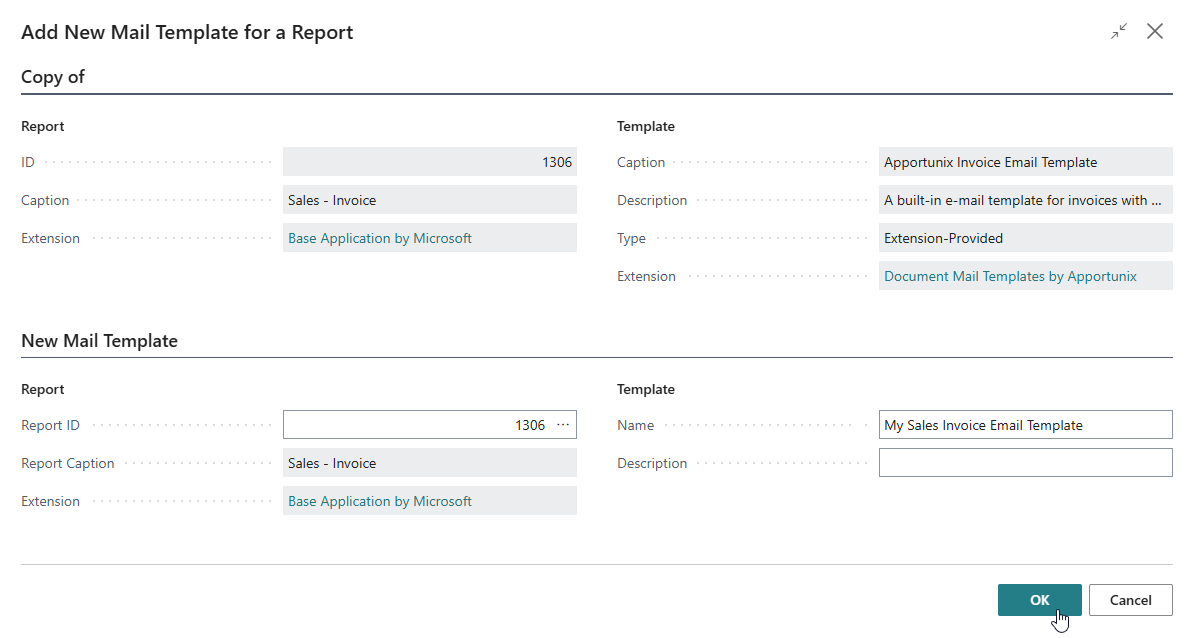
To create a copy of a mail template that is already in use - whether built-in or one of your own - select it on the Document Mail Templates (or Report Layouts) page and invoke the Copy Template action. The Add New Mail Template for a Report dialog opens again, now also showing the report and mail template that the copy is made from, so you can verify you selected the right one before giving the copy its own name and description.