Mail Template Translations
A mail template always has a default e-mail subject and body, but you can add a translated variant per language as well - useful, for example, if you send documents to customers and vendors in different countries.
How Language Fallback Works
When an e-mail is composed, Business Central looks for a mail template variant that matches the language of the document:
- A variant for the exact language (for example, Dutch (Belgium),
nl-BE). - If none exists, a variant for the primary/neutral language instead (for example, Dutch,
nl). - If none of the above exists, the default variant is used.
This means you only need to add translations for the languages that actually require a different text - every other language automatically falls back to the default e-mail subject and body.
Managing Translations
In the mail template editor, the Languages group shows:
- Current Language - The language of the e-mail subject and body that you are currently viewing or editing.
- Available Translations - The languages that already have a translated variant.
- Align Translations on Save - Whether Copilot updates the other variants when you save changes; see Aligning Translations with Copilot. This field is only shown when Copilot is enabled.
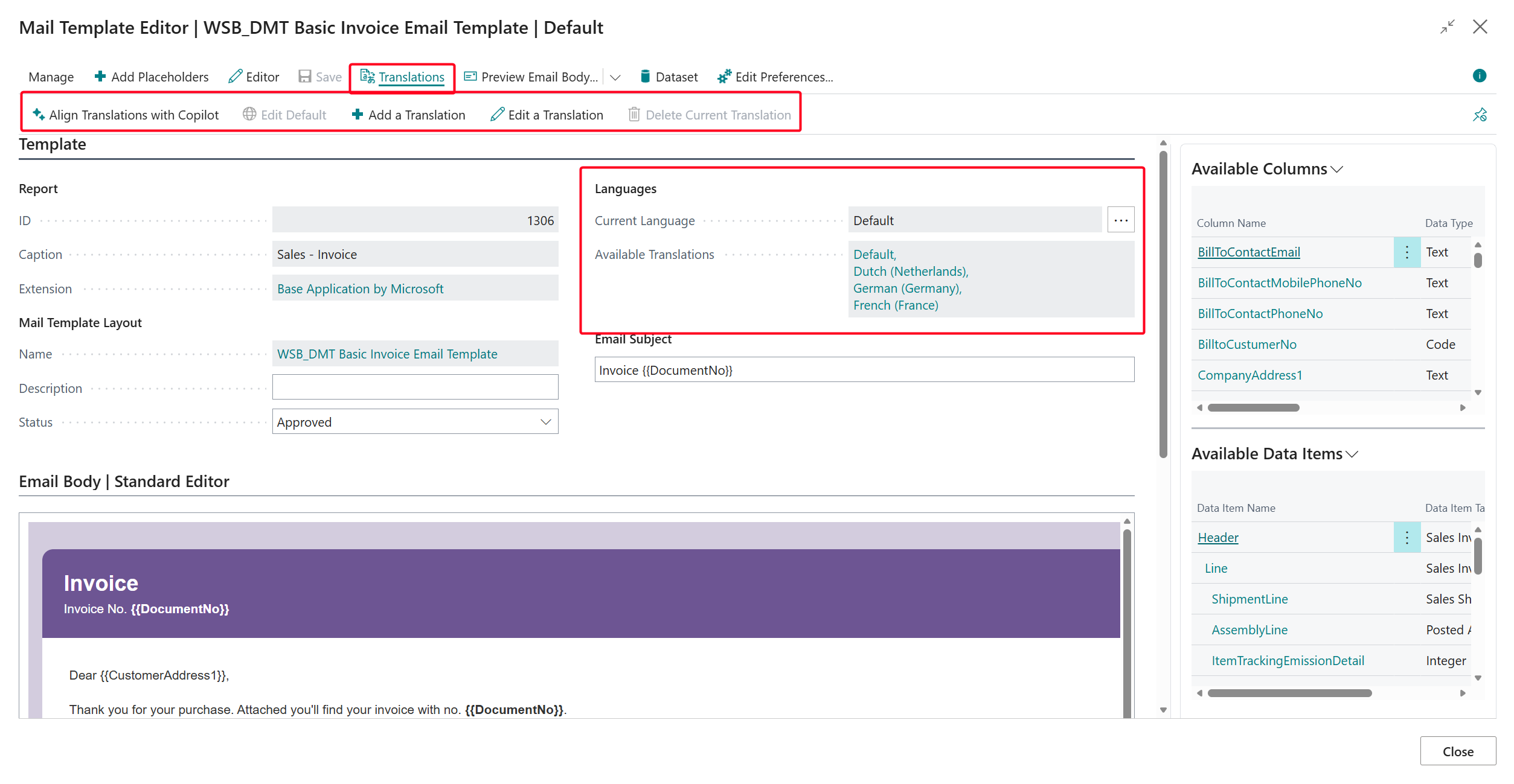
Use the following actions to manage translations:
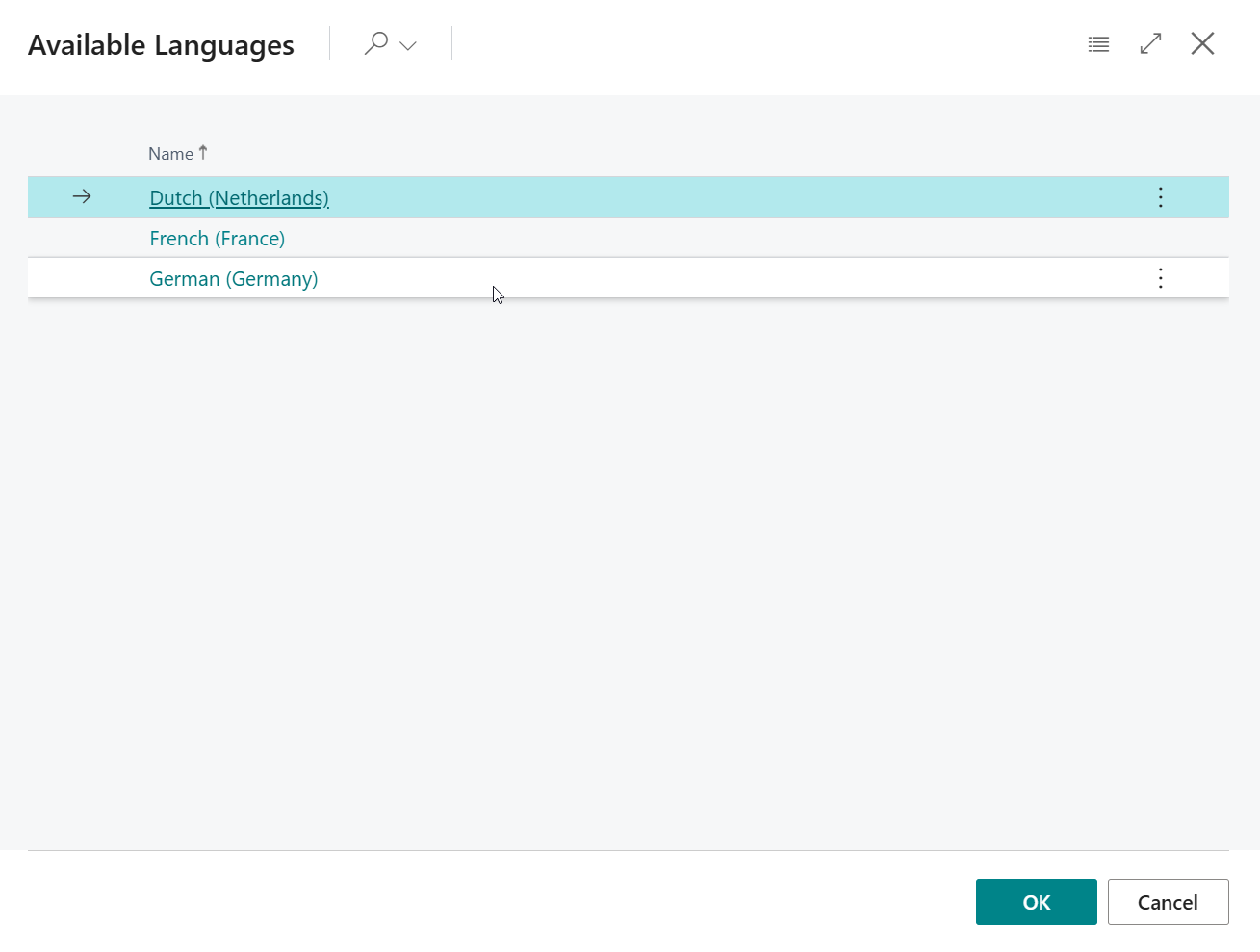
- Add a Translation - Select a language and start a new translated variant, based on a copy of the default e-mail subject and body. When Copilot is enabled, you can choose to let Copilot translate the copy into the selected language straight away.
- Edit a Translation / View a Translation - Switch to editing (or, in read-only mode, viewing) the variant for a different, already translated language.
- Delete Current Translation - Remove the translation for the language you are currently editing. The default e-mail subject and body will be used again for that language.
- Edit Default - Go back to editing the default variant, which is used as a fallback for every language without its own translation.
- Align Translations with Copilot - Let Copilot update all other variants to match the variant that you are currently editing; see below.
Aligning Translations with Copilot
When you change one variant of a mail template - for example, you add a table of the document lines to the default e-mail body - the other variants usually need the same change. Copilot can make that change for you: it takes the variant that you are currently editing as the basis, and updates every other variant to match it.
- The layout, styling and placeholders are copied from the basis exactly; only the text that the recipient reads is translated into the language of each variant.
- Where the text has not changed, Copilot reuses the existing wording of each variant, so that earlier corrections are kept as much as possible.
- Changes that were only made in one of the other variants are overwritten.
Info
Aligning translations with Copilot is a preview feature and is only available in Business Central online, when the Document Mail Templates - Mail Template Assist capability is enabled on the Copilot & agent capabilities page.
You can start the alignment in the following ways:
- With the Align Translations with Copilot action, at any time.
-
When you save changes to the e-mail subject or body, depending on the Align Translations on Save setting:
Setting Description Ask You are asked whether Copilot should update the other variants. Automatically Copilot updates the other variants without asking, and the result is saved together with your changes. Never The other variants are not updated when you save. You can still use the Align Translations with Copilot action. This is the default. The setting is a personal preference that applies to all mail templates. You can also change it through Edit Preferences; see User Preferences.
Before Copilot starts, a confirmation dialog shows which variant is used as the basis and which variants will be updated, for example: Copilot will take the "Default" version as the basis and update the following versions to match it: "Dutch", "English" and "French".
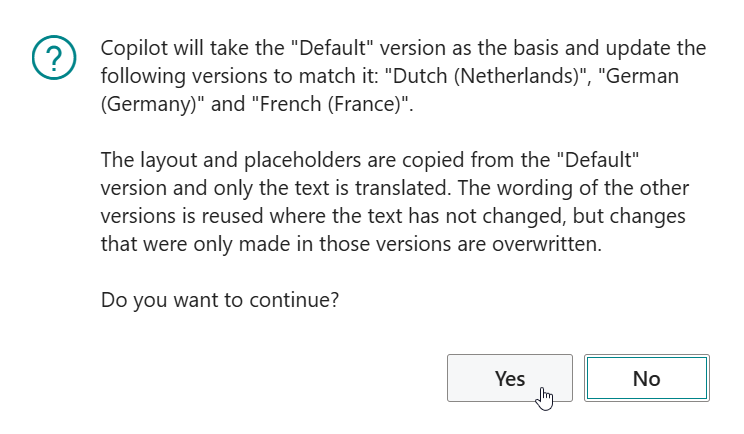
If Copilot cannot update one of the variants, the other variants are still updated and a message lists the variants that failed, so that you can try again or update them yourself.
Warning
Copilot uses AI, so mistakes are possible. Review the translated variants, for example with Edit a Translation and Preview Email Body, before you start using them.